
Steps for Getting Started with Project Management
INTRODUCTION
Project management helps teams organize, track, and execute work within a project. Project management can help your team plan, manage, and execute your work in order to meet your project’s requirements on time.
SUB – MODULES
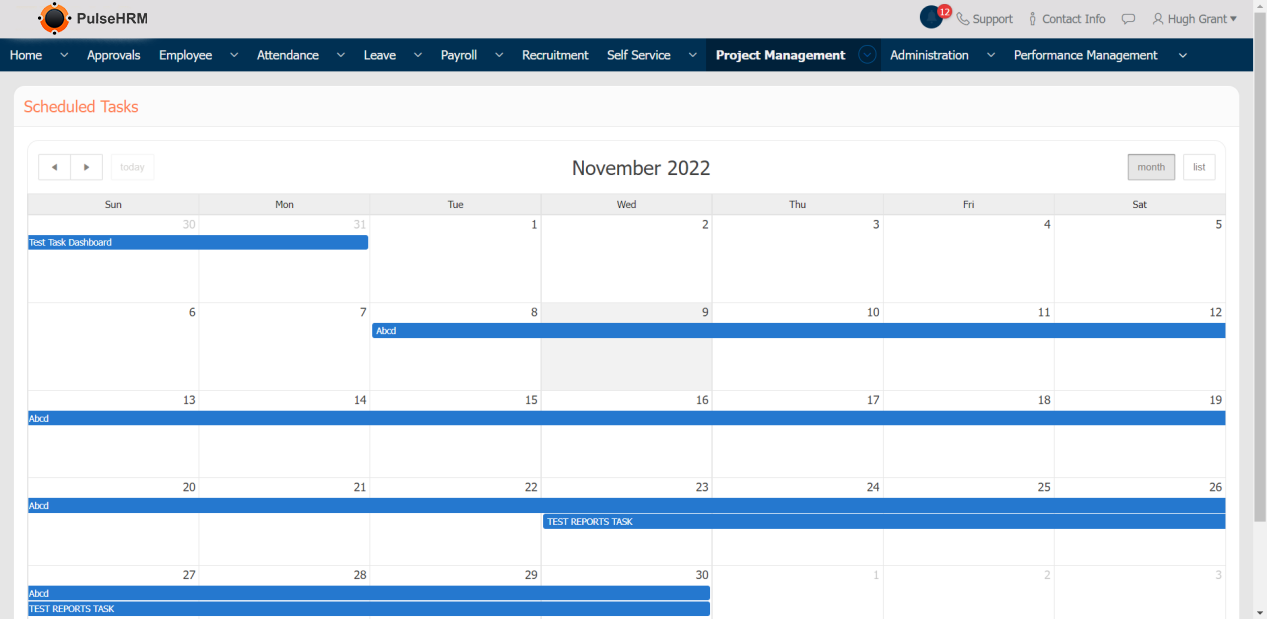
1) Scheduled Task
The Scheduled Task is used to display the task assigned to the particular employee along with the time allocated to it in calendar view.
2) Dashboard
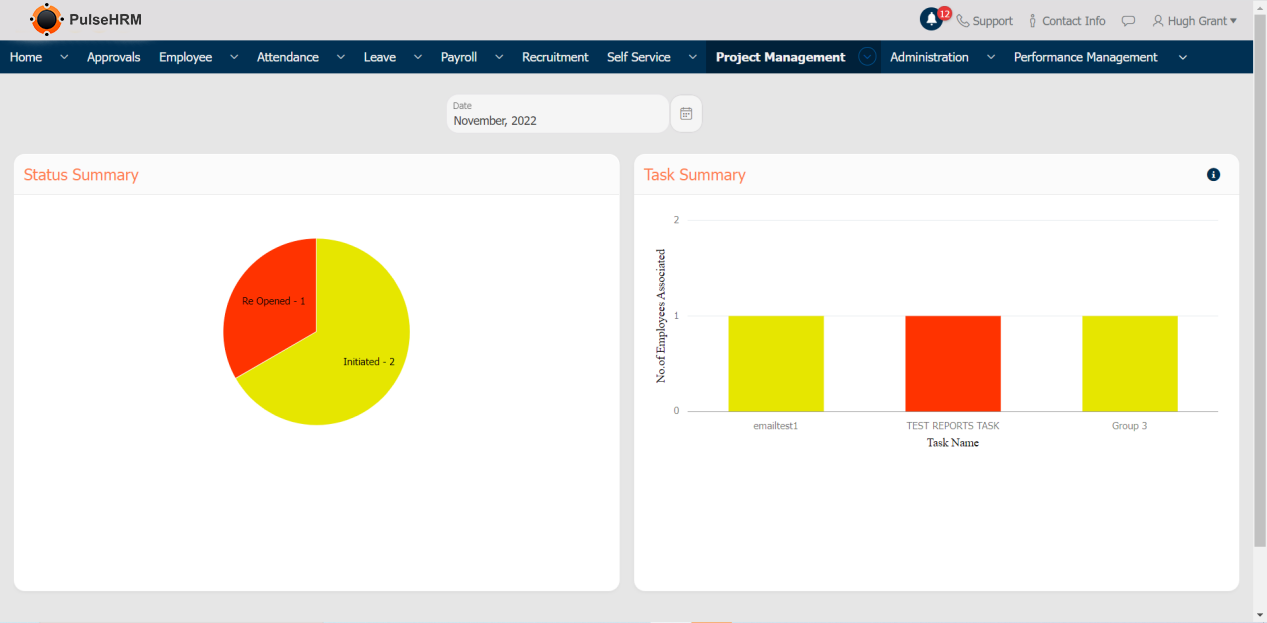
The Dashboard displays the status of the member task status and the no. Of employees assigned to the task based on the project created date.
3) Project Management Facet Dashboard
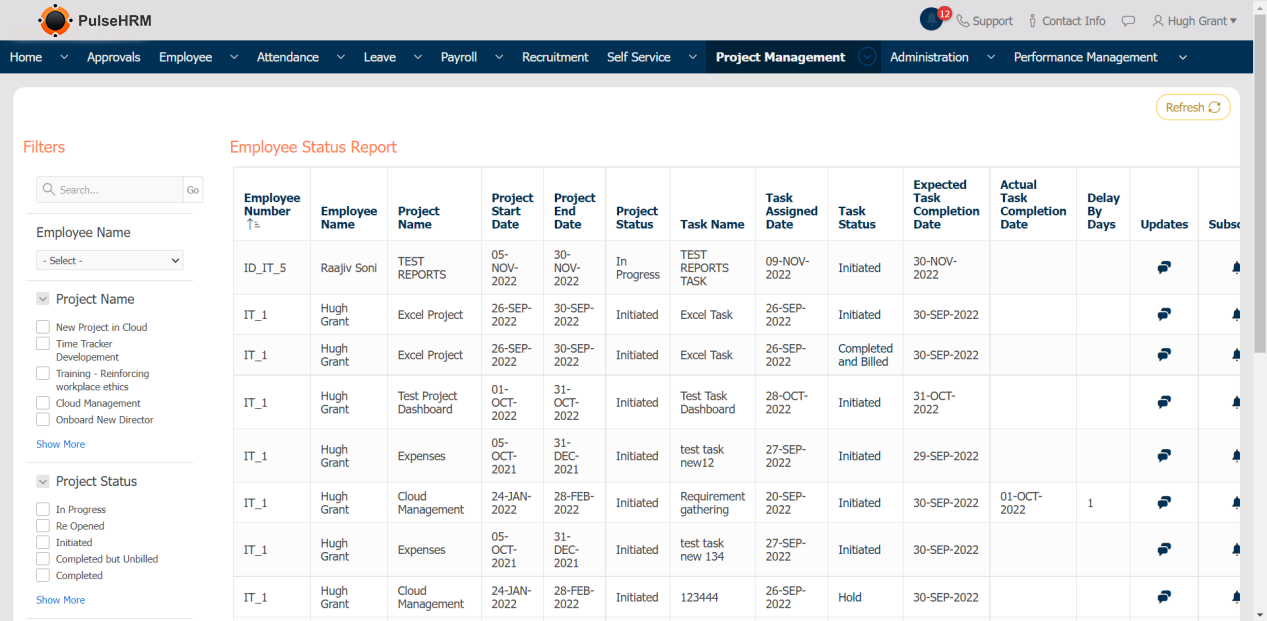
The facet dashboard is used to filter the data of the task assigned to the employees based on project name, task name, task status, project status, task start and end date.
4) Task Management
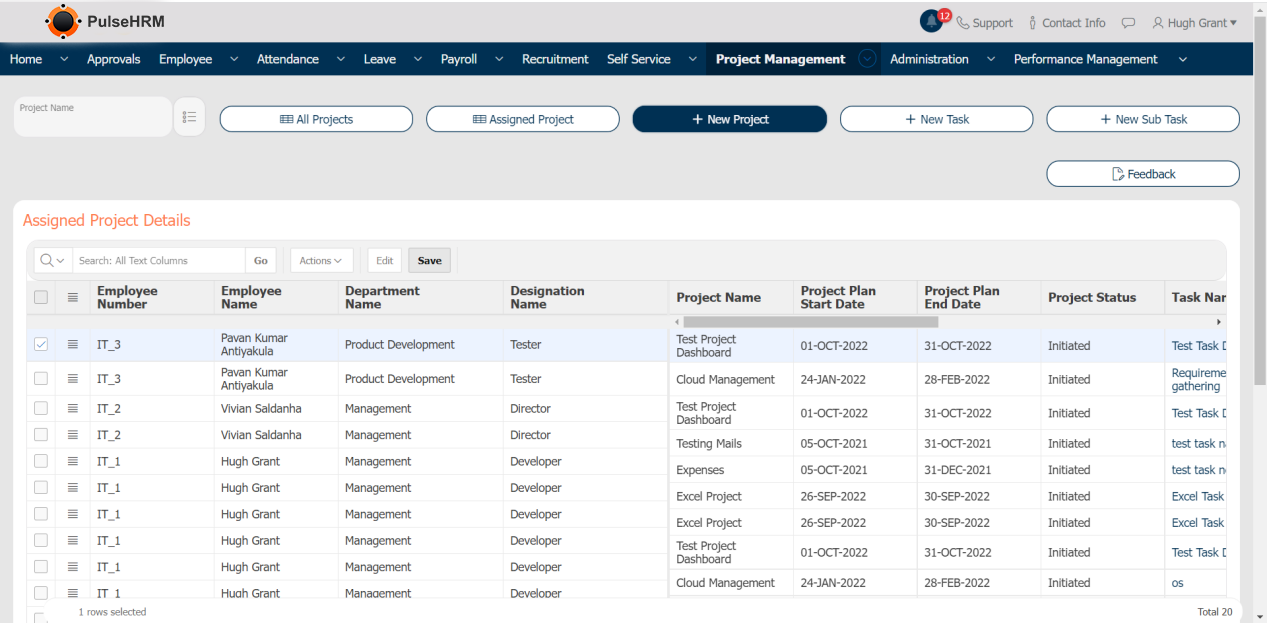
The Task Management is used to create new project, task and assign the same to the employee’s of the organization. View the created project and the assigned task.
- All Project: is used to view all the projects created.
- Assigned Project: is used to view the task and project assigned to the employee’s.
- New Project: is used to create new client project
- New Task: is used to create new task for the created projects.
- New Sub Task: is used to create new sub task under the created task.
The Project Name tab is used to assign the task under the selected project to the employees.
5) Project Management Reports
The Reports displays the reports based on the time sheet submitted by the employees of the selected project.
- Project Monthly Report: displays the total hours worked by the employees of the selected project between the selected bandwidth.
- Project Status view: displays the total hours worked by an particular employee for the selected project everyday from the dates selected.
- Time sheet History: displays the history of the time sheet submitted by the employees along with the Approver details and status.
- Project Feedback: displays the feedback submitted for the task and project they have been assigned to.
- Project Details: displays the files/documents uploaded in the process of the project completion.

6) My Task
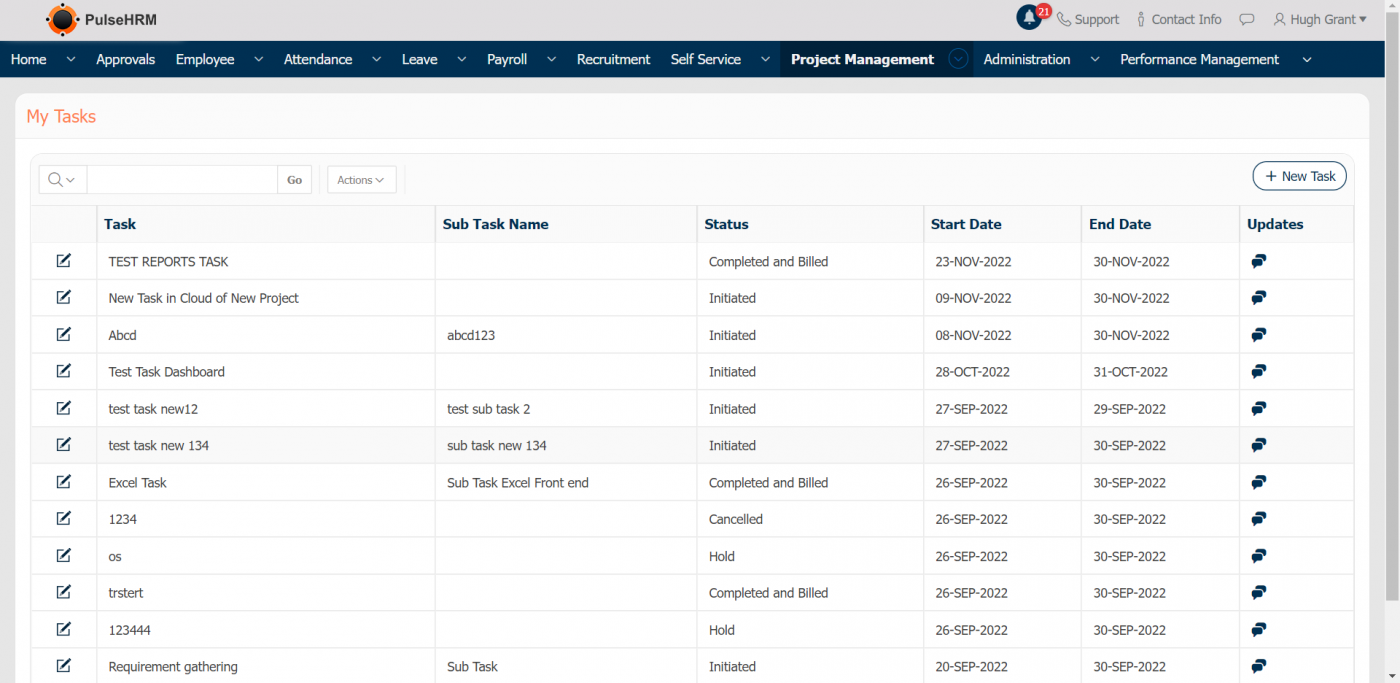
It displays the task assigned to the particular logged in employee and the details of the task and project. The employee can also send update on the project status and view the updates sent by their teammates.
7) Team Task
It displays the report of the employees working for the same project as the logged in employee.
8) Status Update
It displays the details of the list of project based on there status like cancelled, completed & billed, Hold and Initiated. When clicked on details the list of the project will be displayed.